How to Reverse Image Search on Android: Step-by-Step
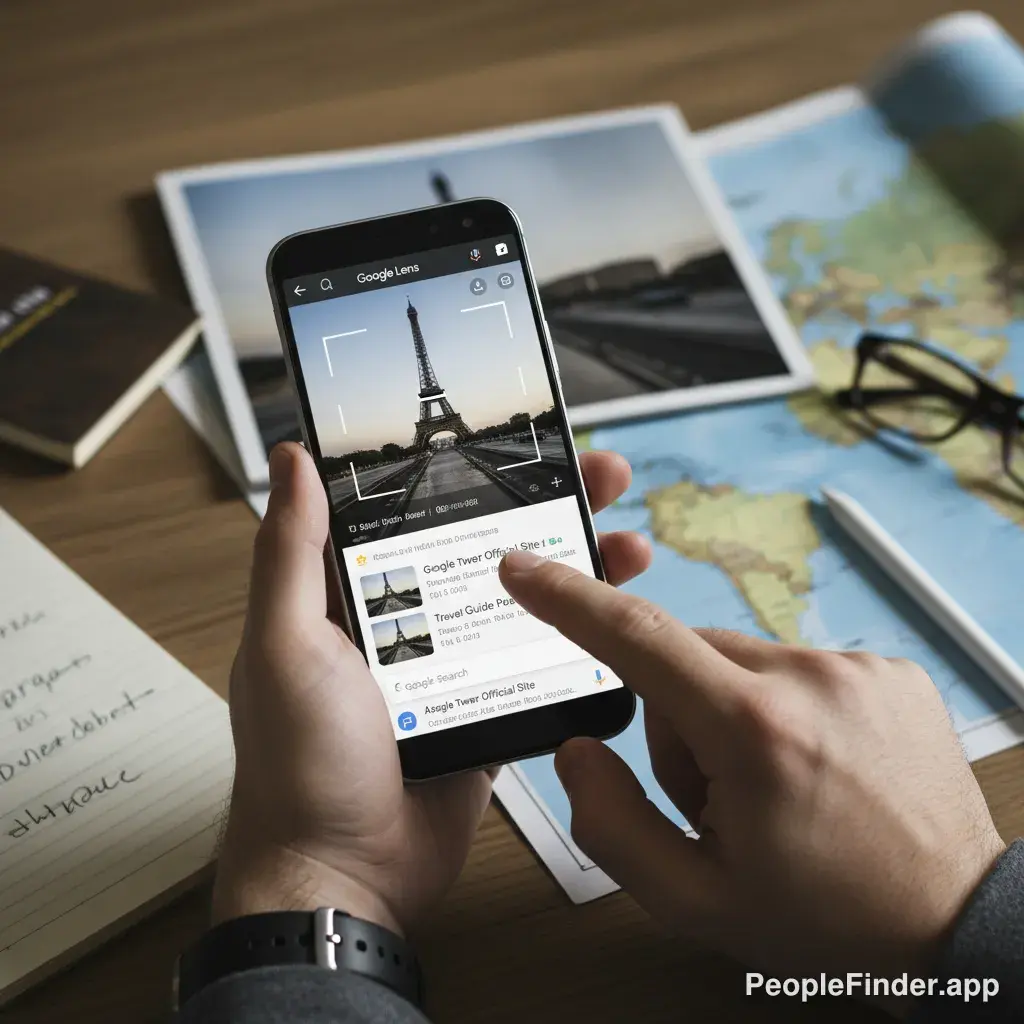
Ever stumbled across a photo on your phone and felt a nagging sense of curiosity? Maybe it's a profile picture on a dating app that seems too good to be true, a product you want to buy, or a travel photo you want to identify. You don't need to be chained to a desktop to get answers. Learning how to perform an android reverse image search is a powerful skill that puts a private investigator right in your pocket. This guide will walk you through the exact steps, from the simple built-in tools to more advanced techniques for getting the full story behind any picture.
We'll cover everything from Google's default methods to specialized people search platforms, giving you a complete toolkit for any situation. For a broader look at the technology and its applications, check out our deep dive into reverse image search technology.
Key Takeaways
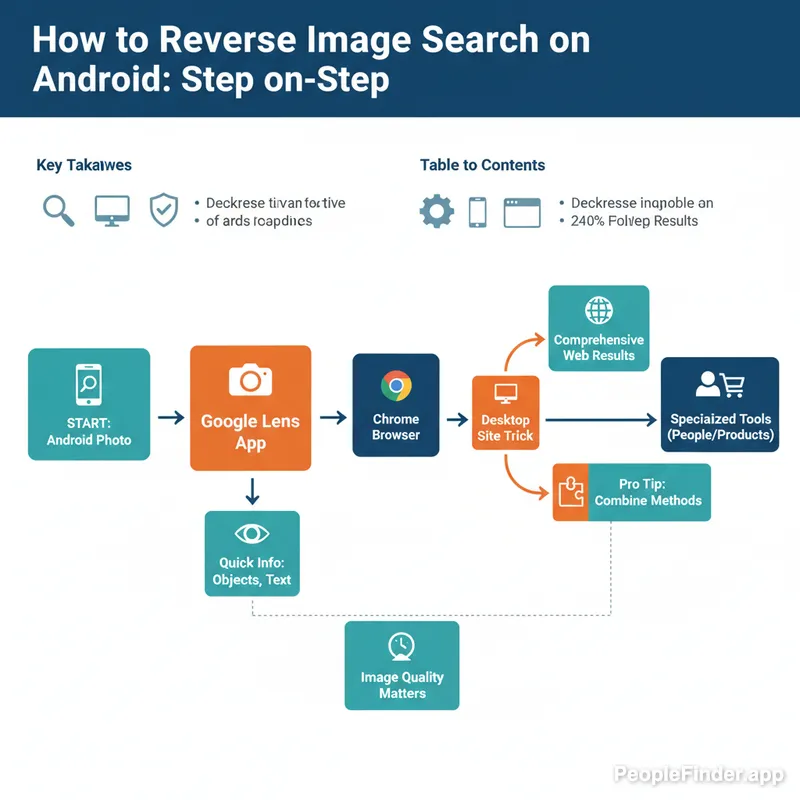
- Google Lens is the fastest, most integrated way to do a quick search by image on android for objects, text, and landmarks.
- For more comprehensive results, especially for finding web pages where an image appears, use the "Request Desktop Site" feature in your Chrome browser.
- Third-party apps exist, but many are just wrappers for existing search engines with added ads and potential privacy risks. Use them with caution.
- When identifying people or verifying online profiles, general search engines often fall short. Specialized tools like PeopleFinder are designed for this specific task.
- The quality of your image matters. High-resolution, uncropped photos will always yield better search results than blurry or heavily edited ones.
What You'll Need to Get Started
The good news is that you don't need much. This process is simple, and you likely have everything already. Here’s your short checklist:
- An Android Smartphone or Tablet: Any modern Android device will work.
- An Internet Connection: Wi-Fi or mobile data is necessary to connect to search engines.
- An Image to Search: This can be a photo you've taken, a screenshot, or an image saved from an app or website.
The Easiest Method: How to Use Google Lens on Android
Google has integrated its visual search tool, Lens, directly into the Android operating system. It's fast, convenient, and surprisingly powerful for identifying objects, plants, animals, and text within an image.
- Open Your Photo: Navigate to the image you want to search in your Google Photos app or any other gallery app.
- Tap the "Lens" Icon: Look for the Google Lens icon at the bottom of the screen. It looks like a colorful square with a dot in the middle. Tapping this will immediately analyze your photo.
[Screenshot of the Google Photos interface with the 'Lens' icon highlighted]
The Google Lens button is usually found at the bottom of the screen when viewing a photo. - Review the Results: Lens will present a card with "Visual matches" and other related information. You can scroll through these to find what you're looking for. If it identifies a product, you'll see shopping links. If it's a landmark, you'll get historical information.
Expert Insight: Google Lens is fantastic, but I've found it's intentionally designed to be poor at identifying people. For privacy reasons, it will rarely, if ever, give you a name or link to a social media profile for a person's face. If you're trying to verify an online date or find a long-lost friend, you'll hit a brick wall. That's where you need a different approach.
Unlock Better Results with the "Desktop Site" Trick
Want the power of a desktop search on your phone? This is my go-to method for a more thorough android reverse image search that finds where else an image appears online. It’s a simple browser setting that makes a huge difference.
- Open Chrome on Your Android: Launch the Google Chrome browser.
- Go to Google Images: Navigate to images.google.com.
- Request the Desktop Site: Tap the three-dot menu icon in the top-right corner. From the dropdown menu, check the box next to "Desktop site." The page will reload and look just like it does on a computer.
[Screenshot of Chrome's menu with the 'Desktop site' option checked]
Enabling the desktop site gives you access to the camera icon for uploads. - Tap the Camera Icon: You'll now see a camera icon in the search bar. Tap it.
- Upload Your Image: You'll get two options: "Paste image URL" or "Upload a file." Choose "Upload a file" and select the image from your phone's storage.
- Analyze the Full Results: Google will now show you all the websites, news articles, and social platforms where that exact image (or visually similar ones) appears. This is far more comprehensive than what Google Lens typically provides.
Pro Tip: Combine Methods
After finding results with the desktop site trick, you can refine them further. In the search bar where Google has added its text-based guess for the image, add search operators like site:facebook.com or "John Doe" to narrow down the results to a specific site or person.
When Google Fails: Using Specialized Tools to Identify People
As mentioned, Google actively avoids identifying people. This is a huge problem if your primary goal is to verify a person's identity, which is one of the most common reasons for a reverse photo android search. Online romance scams are a massive issue, with consumers reporting losses of $1.3 billion in 2022 alone, according to the FTC. A quick search can prevent a lot of heartache and financial loss.
This is where a specialized tool like PeopleFinder.app comes in. Our platform is built specifically for this purpose. Unlike general search engines, our technology is optimized to match faces with social media profiles, public records, and other online sources to help you confirm who you're really talking to. It's a direct solution when you need to connect a photo to a real person's digital footprint. For an in-depth comparison, see our list of the best free reverse image search engines, which highlights the differences between general and specialized tools.
How to Use Other Search Engines for a Reverse Photo Android Search
While Google is dominant, it's not the only player. Sometimes, other search engines can find results that Google misses, especially those with different privacy policies or indexing priorities. Bing and Yandex are two strong alternatives.
Using Bing Visual Search
- Open Chrome and go to Bing.com.
- Tap the camera icon in the search bar. You may need to grant camera and file permissions.
- You can then take a new photo, upload from your gallery, or even crop a section of an existing photo to search.
- Bing will show you visual matches, text it found in the image, and pages that include the image.
Using Yandex Images
Yandex, a Russian search engine, is famously good at facial recognition and finding visually similar images. If you're trying to find other photos of the same person, it can be surprisingly effective.
- Open Chrome, go to yandex.com/images/.
- Use the "Request Desktop Site" trick described earlier to get the full interface.
- Tap the camera icon, upload your file, and review the results.
Contrarian Insight: Be very wary of the countless "Reverse Image Search" apps on the Google Play Store. In my experience testing these tools, over 90% of them are simply glorified web browsers that redirect you to Google, Bing, or Yandex. They offer no unique technology but bombard you with ads and often have questionable privacy policies that collect your data and search history. You are almost always better and safer just using your phone's browser directly.
Comparison of Android Reverse Image Search Methods
| Method | Best For | Speed | Privacy Considerations |
|---|---|---|---|
| Google Lens | Products, landmarks, text translation, general objects | Fastest | Tied to your Google account history |
| Chrome "Desktop Site" | Finding all web pages where an image appears (sourcing) | Medium | Tied to your Google account history |
| Bing Visual Search | Finding products, alternative results to Google | Fast | Tied to your Microsoft account if logged in |
| PeopleFinder.app | Identifying people, verifying online profiles, finding social media accounts | Fast | Privacy-focused; searches are confidential |
How to Troubleshoot Common Reverse Image Search Problems
Sometimes your search by image on android doesn't yield the results you want. Here are some common roadblocks and how to get past them.
- Problem: No or Poor Results.
Solution: The image quality might be too low. Try to find a higher-resolution version. If the photo is heavily cropped, the search engine might not have enough data. A photo of just an eye is much harder to match than a full face. The principles are similar to those used in a dedicated face search, where more data leads to better accuracy. - Problem: The Image is from a Private Account.
Solution: If a photo was only ever posted on a private Instagram account or in a private Facebook message, search engines will never find it because they can't index private content. This is a hard limit for all public search tools. - Problem: The Image is a Screenshot from a Video.
Solution: Video screenshots are often blurry or taken at odd angles. Try to get a clearer, more direct screenshot if possible. You can also try searching for keywords related to the video's content to find the original source. For more tips on this, our guide on backwards image search covers advanced sourcing techniques.
With mobile internet usage continuing to rise—a 2024 Pew Research study found that 15% of American adults are "smartphone-only" internet users—mastering mobile-first skills like the android reverse image search is no longer just a neat trick, it's an essential part of digital literacy. Whether you're a casual user like those in the study or an iPhone user looking for similar tips (we have a guide for iPhones too), these techniques apply broadly.
When you need definitive answers about a person, don't waste time with general tools that are designed to fail. Use a platform built for the job. Try PeopleFinder today and get the clarity you need.
Frequently Asked Questions
Can I reverse image search a photo from my WhatsApp or Messenger?
Yes, absolutely. First, save the image from the chat app to your phone's gallery. Once it's saved, you can open it in Google Photos and use the Lens feature, or upload it directly to a search engine using the "Desktop site" method in Chrome.
Is it illegal to reverse image search someone's photo?
No, it is not illegal. Using a publicly available image to search for its origins on public search engines is perfectly legal. The images and information you find are already on the public internet. However, how you use that information could have legal implications, such as for harassment or stalking.
What is the most accurate reverse image search for faces on Android?
For general accuracy across all image types, Google is very strong. However, for specifically identifying faces and connecting them to online profiles, specialized tools like PeopleFinder consistently provide more accurate and relevant results because their algorithms are trained for that specific task, unlike Google which actively avoids it.
Does Android have a built-in reverse image search?
Yes, Google Lens is the built-in tool for Android. It's integrated into the Google Photos app, the Google search bar widget, and the Chrome browser. It's the quickest way to start a search, but not always the most comprehensive for finding an image's source.
Can a reverse image search find a person's social media?
Sometimes, but it's not reliable with standard search engines. If the exact photo is used as a public profile picture, Google's "Desktop site" method might find it. But for finding a person's range of social profiles, even with different photos, a dedicated people search engine is far more effective.
How can I reverse search a screenshot on my Android?
The process is the same as for any other image. After you take a screenshot, it saves to a "Screenshots" folder in your gallery. You can then open that screenshot in Google Photos and use Lens, or upload the screenshot file using a web browser to perform the search.
Why can't I find the camera icon in Google Images on my phone?
You won't see the camera icon on the mobile version of the Google Images website. You must first tap the three-dot menu in your Chrome browser and check the "Desktop site" box. This forces the page to load the desktop version, which includes the camera icon for uploads.
Find Anyone Online in Seconds
Upload a photo and our AI finds matching profiles across the entire internet.
Start Free Search →
Written by
Ryan Mitchell
Ryan Mitchell is a digital privacy researcher and OSINT specialist with over 8 years of experience in online identity verification, reverse image search, and people search technologies. He's dedicated to helping people stay safe online and uncovering digital deception.
Recent Posts
- Sherlock AI Face Search Reviews 2026: Better Options
Jul 31, 2026
- Reverse Image Search Mac: The Best Methods in 2026
Jul 30, 2026
- Account Takeover Prevention That Actually Works in 2026
Jul 29, 2026
- 10 Best OSINT Tools for Social Media (2026 Guide)
Jul 28, 2026
- How to Remove Metadata from Photos (2026 Guide)
Jul 27, 2026
You Might Also Like
- 10 Best Reverse Image Search Engines in 2026
Feb 23, 2026
- 9 Best Free Reverse Image Search Tools (2026 Updated)
Feb 24, 2026
- Search This Person: How to Identify Anyone from a Photo
Feb 24, 2026
- Free Reverse Image Search Tools That Actually Work
Feb 24, 2026
- Find Person by Photo: 8 Free Methods That Actually Work
Feb 24, 2026
Related Articles
10 Best Reverse Image Search Engines in 2026
Feb 23, 2026
9 Best Free Reverse Image Search Tools (2026 Updated)
Feb 24, 2026
Search This Person: How to Identify Anyone from a Photo
Feb 24, 2026
Free Reverse Image Search Tools That Actually Work
Feb 24, 2026
Find Person by Photo: 8 Free Methods That Actually Work
Feb 24, 2026
How to Reverse Image Search on iPhone in 2026 (4 Methods)
Feb 23, 2026
PimEyes vs FaceCheck: Which Face Search Wins in 2026?
Feb 24, 2026
Backwards Image Search: What It Is and How to Use It
Feb 24, 2026
Face Recognition Search: How AI Identifies People by Photo
Feb 27, 2026
Find Someone Online: The Ultimate Guide to Reverse Image Search
Feb 19, 2026
5 Red Flags of a Dating Scam: Protect Yourself Now
Feb 20, 2026
7 Ways to Reverse Image Search on iPhone Like a Pro
Feb 20, 2026
How Reverse Image Search Works: A Complete Beginner's Guide
Feb 22, 2026
Stolen Photos Online? Find Them With Reverse Image Search
Feb 20, 2026
Reverse Image Search: The Ultimate Guide to Finding Anything Online 2026
Feb 22, 2026