How to Reverse Image Search on iPhone in 2026 (4 Methods)

Ever found a photo on your iPhone and wondered where it came from? Maybe you're trying to identify a plant, find a product you saw in a picture, or verify if a social media profile is legit. Whatever your reason, knowing how to search by image on iPhone is a modern-day superpower. It’s more than just a novelty; it's a critical tool for navigating the visual web. At PeopleFinder, we live and breathe this stuff, and we're here to show you the exact methods that actually work. This isn't just a list—it's a breakdown of which tool to use for which job, based on thousands of hours of real-world testing. Ready to become an expert in reverse image search?
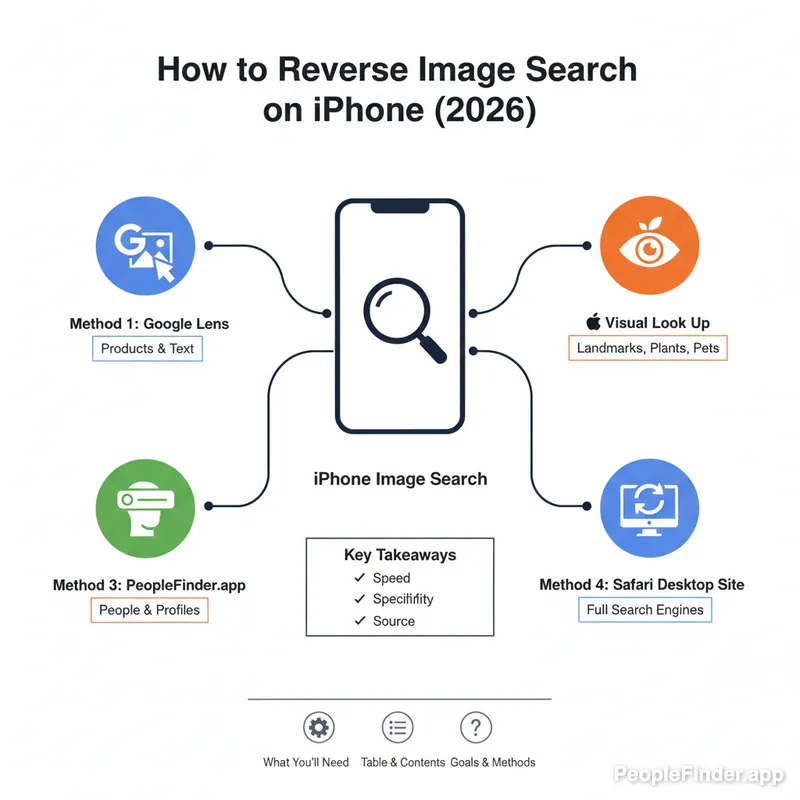
Key Takeaways
- Apple's built-in Visual Look Up is fast for identifying common objects, landmarks, and pets directly from your Photos app.
- Google Lens (via the Google or Chrome app) offers the most powerful and comprehensive general-purpose image search engine.
- For finding people and verifying identities, specialized tools like PeopleFinder are far more effective than general search engines.
- Third-party apps can offer more search engine options but often come with ads or subscription costs.
- Cropping your image to focus on the key subject dramatically improves the accuracy of any reverse photo search on iPhone.
Get Your iPhone Ready for an Image Search
Before you start, let's make sure you're set up for success. The good news is you don't need much. All these methods work on modern iPhones running a recent version of iOS.
Here’s your simple checklist:
- An iPhone: Any model from the iPhone 11 onwards running iOS 17 or later will have the best compatibility.
- The Image: The photo should be saved to your Photos library, be a screenshot, or be viewable in your web browser (like Safari or Chrome).
- A Stable Internet Connection: Wi-Fi is best, but a solid 4G/5G connection works just fine. The search happens online, so no connection means no results.
Use Apple's Built-in Visual Look Up for Quick Identifications
Apple has its own native ios image search feature called Visual Look Up. It's built right into the Photos app and Safari. It's incredibly convenient for quick, on-the-fly identifications of common things.
Here's my contrarian take: While tech blogs love to praise this feature, I've found that it's fantastic for identifying a dog breed or a famous landmark, but it's often useless for finding the original source of a meme or identifying a specific person. It's a great starting point, but rarely the final answer.
How to Use Visual Look Up from Your Photos App
- Open the Photos app and tap on the image you want to search.
- Look for the little "i" (info) icon at the bottom of the screen. If it has stars sparkling around it, that means Visual Look Up has found information. Tap it.
- A panel will slide up. Tap on "Look Up [Object]" (e.g., "Look Up Plant," "Look Up Art") to see Siri Knowledge, similar web images, and other details.
How to Use Visual Look Up in Safari
- Find an image on any webpage in Safari.
- Tap and hold on the image until a menu pops up.
- Select "Look Up" from the menu.
- A results panel will appear at the bottom with information about the image's subject.
Unleash Google Lens for the Most Comprehensive Search by Image on iPhone
When you need more power, Google Lens is the undisputed champion of general reverse image searching. It taps into Google's massive image index and is far more likely to find visually similar images, product pages, and original sources. To search by image on iPhone with Google, you'll need either the Google app or the Google Chrome browser.
Method A: Using the Google App
- Download the Google app from the App Store if you don't have it.
- Open the app and tap the colorful camera icon (the Lens icon) in the search bar.
- Grant the app permission to access your camera and photos.
- You can either point your camera at an object in real-time or tap the photo gallery icon to select an image from your library.
- Google will instantly analyze the image and show you matching results. You can even crop the image within the app to focus the search.
Method B: Using the Google Chrome Browser
- Open Chrome on your iPhone.
- Navigate to a webpage with the image you want to check.
- Tap and hold the image until the context menu appears.
- Select "Search Image with Google" from the bottom of the menu.
- Chrome will open a new tab with your Google Lens results.
Pro Tip: Isolate Your Subject
Getting cluttered results? Before you search, use the iPhone's built-in editor to crop the image, focusing only on the person, object, or text you want to identify. A tighter crop removes distracting background noise and tells the search engine exactly what to look for, leading to much higher accuracy.
Go Beyond the Basics with Dedicated Reverse Search Apps
While Apple and Google cover most bases, a few dedicated third-party apps on the App Store offer more niche features, like the ability to search across multiple engines (Bing, Yandex, etc.) at once. An app like Reversee is a popular choice for this.
However, be aware of the trade-offs. Most free apps are heavily supported by ads, and some may have questionable privacy policies. In my experience testing these tools, they rarely provide better results than Google Lens for general searches and are completely outmatched by specialized platforms for people searches. They're best for power users who want to compare results across different engines without opening multiple browser tabs.
Find People, Not Just Pictures, with The Identity Verification Method
Here’s the second contrarian insight that most guides miss: general image search tools are actively designed to be bad at identifying regular people. For privacy reasons, Google won't show you a gallery of someone's social media profiles just from their photo. This is a huge problem if you're trying to verify an online date, check a potential business contact, or find a long-lost friend.
This is where our unique "Identity Verification Method" comes in, using a specialized tool built for this exact purpose: PeopleFinder.app. Online romance scams cost consumers a staggering $1.14 billion in 2023, according to the FTC's latest data spotlight. A proper iphone reverse image search is your first line of defense.
A specialized search can help you spot the signs of a dating profile scammer before it's too late.
How to Use PeopleFinder for an iPhone Photo Search
- Save the Image: Make sure the photo of the person is saved to your iPhone's Photos library.
- Navigate to PeopleFinder: Open Safari or your browser of choice and go to PeopleFinder.app.
- Upload the Photo: Tap the "Image Search" option and select "Upload Image." Choose the picture from your library.
- Analyze the Results: PeopleFinder scans its vast database, including public records and social media profiles that general search engines miss. It connects the face in the photo to actual identities, providing names, social profiles, location history, and more.
This method is purpose-built to find people from a photo, not just find other places the photo appears online. It's the difference between finding a needle and finding the person who dropped it.
Placeholder for an infographic comparing the results from Google Lens vs. PeopleFinder for a person's photo.
Which iPhone Reverse Image Search Method Is Right for You?
Confused about which tool to use? Don't be. Each has its strengths. Use this table to pick the right one for your specific task.
| Method | Best For | Accuracy | Ease of Use | People Search? |
|---|---|---|---|---|
| iOS Visual Look Up | Quickly identifying plants, animals, landmarks, art. | Moderate | Excellent (Built-in) | No |
| Google Lens | Finding products, sources of images, similar photos, translating text. | Excellent | Very Good | Limited / Poor |
| Third-Party Apps | Comparing results across multiple search engines at once. | Varies | Good | Limited / Poor |
| PeopleFinder.app | Verifying identities, finding social profiles, checking for catfishers. | Specialized & High | Excellent (Web-based) | Yes (Primary Function) |
Solve Common iPhone Image Search Problems
Even with the best tools, you can run into hiccups. Here’s how to solve the most common issues when you search by image on iPhone.
- Problem: "No results found."
Solution: The image might be too low-quality, too obscure, or heavily edited. Try finding a higher-resolution version if possible. Also, crop the image to focus on the main subject. If it's a person from a group photo, crop it to just their face. - Problem: "The results are irrelevant."
Solution: Your search is likely too broad. For example, searching a photo of a person wearing a Nike shirt might just give you results for Nike shirts. Crop the image to just the person's face. If you're using a generic tool like Google to find a person, switch to a specialized tool like PeopleFinder. - Problem: "I can't search an image from inside an app (like Instagram)."
Solution: Most apps don't allow direct image searching. The workaround is simple: take a screenshot. The screenshot will be saved to your Photos app, and you can search it using any of the methods described above.
Pro Tip: The Screenshot Shortcut
Taking a screenshot is the universal key to searching almost any image on your iPhone. See something in a video, a locked Instagram profile, or a text message? Just screenshot it. This simple action makes any visual content searchable.
The rise of AI-generated content makes these skills more important than ever. A 2023 Pew Research study found that only 3-in-10 Americans are confident in their ability to distinguish real photos from AI-generated ones. A quick reverse photo search on iPhone can often reveal if an image is a known fake or has been digitally created. For a deeper dive into your options, check out our list of the 10 best reverse image search engines in 2026.
Ultimately, the best tool depends entirely on your goal. For everything from plants to products, Google Lens is your workhorse. But when the image contains a person and the stakes are high, you need a tool built for the job. Don't bring a hammer to a task that requires a scalpel.
Ready to uncover the story behind your photos and verify the people you meet online? Try your first search on PeopleFinder today and see the difference a specialized tool can make.
Frequently Asked Questions
Can I reverse image search a screenshot on my iPhone?
Yes, absolutely. Take a screenshot of anything on your screen, and it will be saved to your Photos library. From there, you can use any of the four methods—Visual Look Up, Google Lens, third-party apps, or PeopleFinder—to search using that screenshot.
Is it free to search by image on an iPhone?
Yes, the built-in iOS Visual Look Up and using Google Lens (via the Google or Chrome app) are completely free. Most third-party apps offer free, ad-supported versions. Specialized services like PeopleFinder often operate on a credit or subscription model for detailed reports, but allow initial searches to see if a match is found.
What's the best method for finding someone's social media profile from a photo?
The best method is using a specialized people search engine like PeopleFinder. General tools like Google Lens are intentionally designed to protect privacy and will not reliably link a face to specific social media profiles. People-focused tools are built specifically for this purpose and are far more effective.
Does reverse image search work for old photos?
It can, but success depends on whether that photo or a similar one exists online. If you scan an old family photo that's never been uploaded to the internet, a reverse image search won't find anything. However, if it's a photo of a historical event or a famous person, you will likely get results.
Can a reverse image search tell me if a photo has been edited or photoshopped?
Not directly, but it can provide powerful clues. If your search reveals the original, unedited version of the photo, you'll know the one you have has been altered. This is a common technique used to debunk fake news and doctored images circulating on social media.
Why does the 'Look Up' option not appear on my iPhone?
This usually happens for one of two reasons. First, your iPhone's software might be outdated. The Visual Look Up feature requires a modern version of iOS (iOS 15 or later). Second, the feature may not recognize anything of interest in the specific photo you've selected.
Can I perform a reverse photo search on iPhone without an app?
Yes. You can use Apple's built-in Visual Look Up directly from the Photos app or Safari. You can also use a web browser like Safari or Chrome to navigate to a search engine's website (like images.google.com) and use their "desktop site" view to upload a photo, though this can be clunky on mobile.
Find Anyone Online in Seconds
Upload a photo and our AI finds matching profiles across the entire internet.
Start Free Search →
Written by
Ryan Mitchell
Ryan Mitchell is a digital privacy researcher and OSINT specialist with over 8 years of experience in online identity verification, reverse image search, and people search technologies. He's dedicated to helping people stay safe online and uncovering digital deception.
Recent Posts
- Sherlock AI Face Search Reviews 2026: Better Options
Jul 31, 2026
- Reverse Image Search Mac: The Best Methods in 2026
Jul 30, 2026
- Account Takeover Prevention That Actually Works in 2026
Jul 29, 2026
- 10 Best OSINT Tools for Social Media (2026 Guide)
Jul 28, 2026
- How to Remove Metadata from Photos (2026 Guide)
Jul 27, 2026
You Might Also Like
- Find Someone Online: The Ultimate Guide to Reverse Image Search
Feb 19, 2026
- 5 Red Flags of a Dating Scam: Protect Yourself Now
Feb 20, 2026
- 10 Best Reverse Image Search Engines in 2026
Feb 23, 2026
- 7 Ways to Reverse Image Search on iPhone Like a Pro
Feb 20, 2026
- How Reverse Image Search Works: A Complete Beginner's Guide
Feb 22, 2026
Related Articles
Find Someone Online: The Ultimate Guide to Reverse Image Search
Feb 19, 2026
5 Red Flags of a Dating Scam: Protect Yourself Now
Feb 20, 2026
10 Best Reverse Image Search Engines in 2026
Feb 23, 2026
7 Ways to Reverse Image Search on iPhone Like a Pro
Feb 20, 2026
How Reverse Image Search Works: A Complete Beginner's Guide
Feb 22, 2026
Stolen Photos Online? Find Them With Reverse Image Search
Feb 20, 2026
Reverse Image Search: The Ultimate Guide to Finding Anything Online 2026
Feb 22, 2026