Two searches, one crop
You find a photo online and you want to know one of two things: who is in it, or where it was taken. Normally that means saving the image, finding the file again, opening a search tool and uploading it — and if you only care about one face in a group shot, cropping it first in some other app.
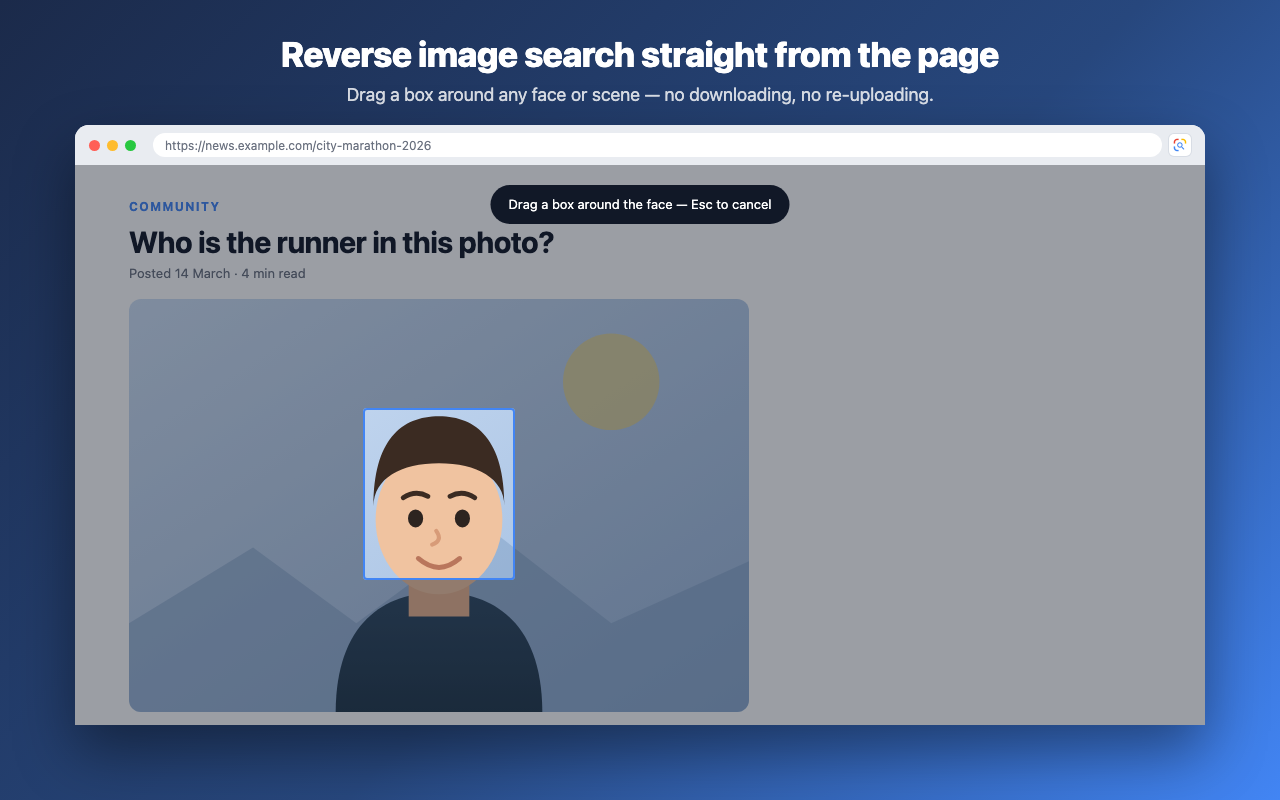
The PeopleFinder Chrome extension collapses that into a drag. Box the part of the page you care about, pick what you want to know, and the crop arrives in PeopleFinder already attached to the search.
- ✓Find a person by photo — the crop goes to PeopleFinder face search.
- ✓Find where a photo was taken — the same crop goes to the photo location finder.
- ✓Nothing is saved to your computer and nothing is uploaded by hand.
- ✓You review every crop and start every search yourself.
Set it up in under a minute
- 1Open the Chrome Web Store listingSearch for “PeopleFinder: Face & Photo Location Search”, or follow the Add to Chrome button at the top of this page.
- 2Click Add to Chrome, then Add extensionChrome shows exactly what the extension can do before you confirm. Nothing runs until you install it.
- 3Pin it to the toolbarClick the puzzle-piece icon to the right of the address bar and pin PeopleFinder so the crop button is always one click away.
- 4Check the keyboard shortcutAlt+Shift+S starts a crop on the page you are looking at. If another extension has claimed it, rebind it at chrome://extensions/shortcuts.
How to find a person by photo
- 1Open the page with the photoAny site works — a news article, a forum thread, a marketplace listing, a social profile. The photo stays where it is.
- 2Start a cropClick the PeopleFinder icon, press Alt+Shift+S, or right-click the image and choose “PeopleFinder: find this person or where it was taken”. Right-clicking pre-fits the box to that image — press Enter to accept it.
- 3Drag a box around the faceTight on the face is best for a face search. The area you select stays bright while the rest of the page dims, so you can see exactly what you are sending.
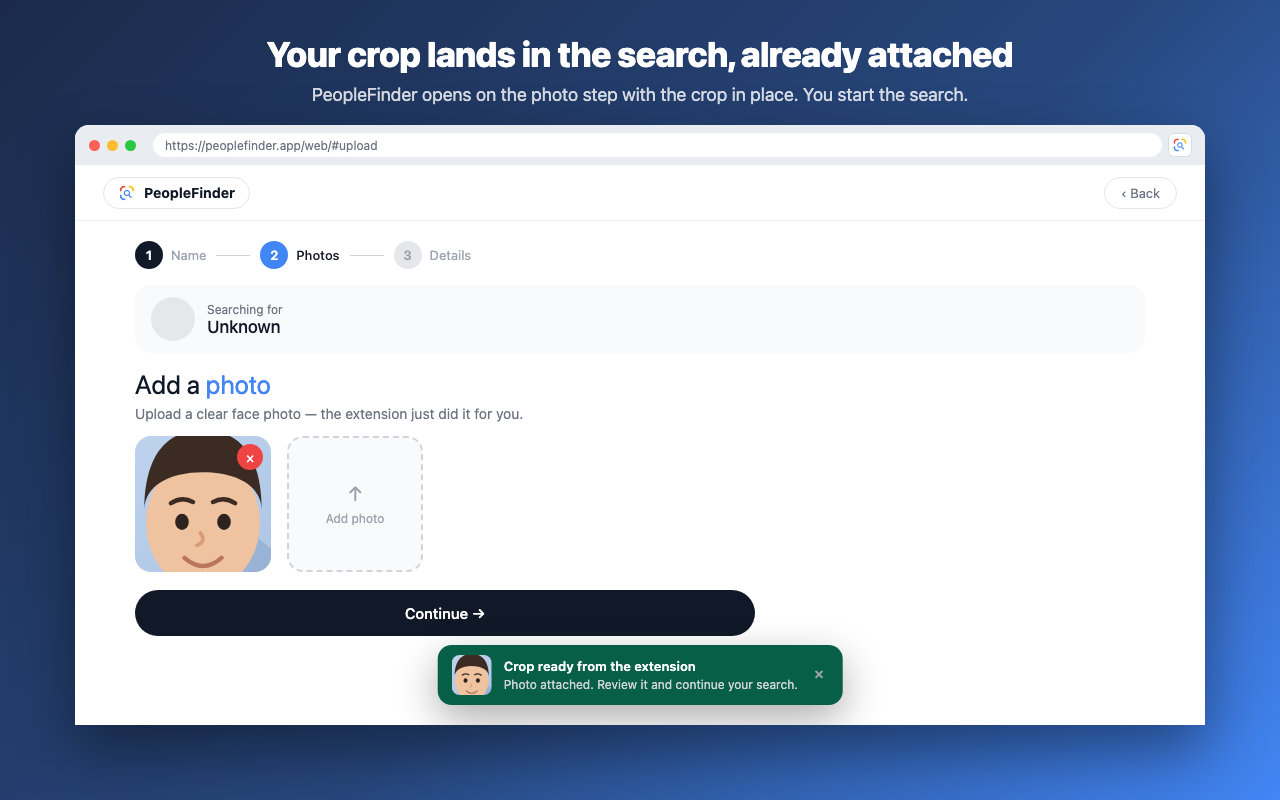
- 4Choose “Find the person”Add a name if you know one and leave it blank if you do not. A name narrows the search, but the photo alone is enough.
- 5Review and searchPeopleFinder opens with your crop already attached to the photo step. You press Continue and start the search yourself — the extension never submits anything for you.
How to find where a photo was taken
A photo with no caption and no geotag still carries plenty of clues: the shape of a skyline, the language on a shop sign, the style of the street lights, the mountains behind the harbour. The PeopleFinder photo location finder reads those clues — and the extension gets your crop there in one click.
- 1Crop the scene, not the faceBuildings, street signs, shop fronts, mountains, coastline, road markings. The more context in the crop, the more the model has to work with.
- 2Switch to “Find the location”The card swaps the name field for a reminder about what makes a good location crop, and the button becomes “Find where it was taken”.
- 3Land on the photo location finderpeoplefinder.app/photo-location-finder opens with the crop attached to the upload card, scrolled into view and ready to analyse.
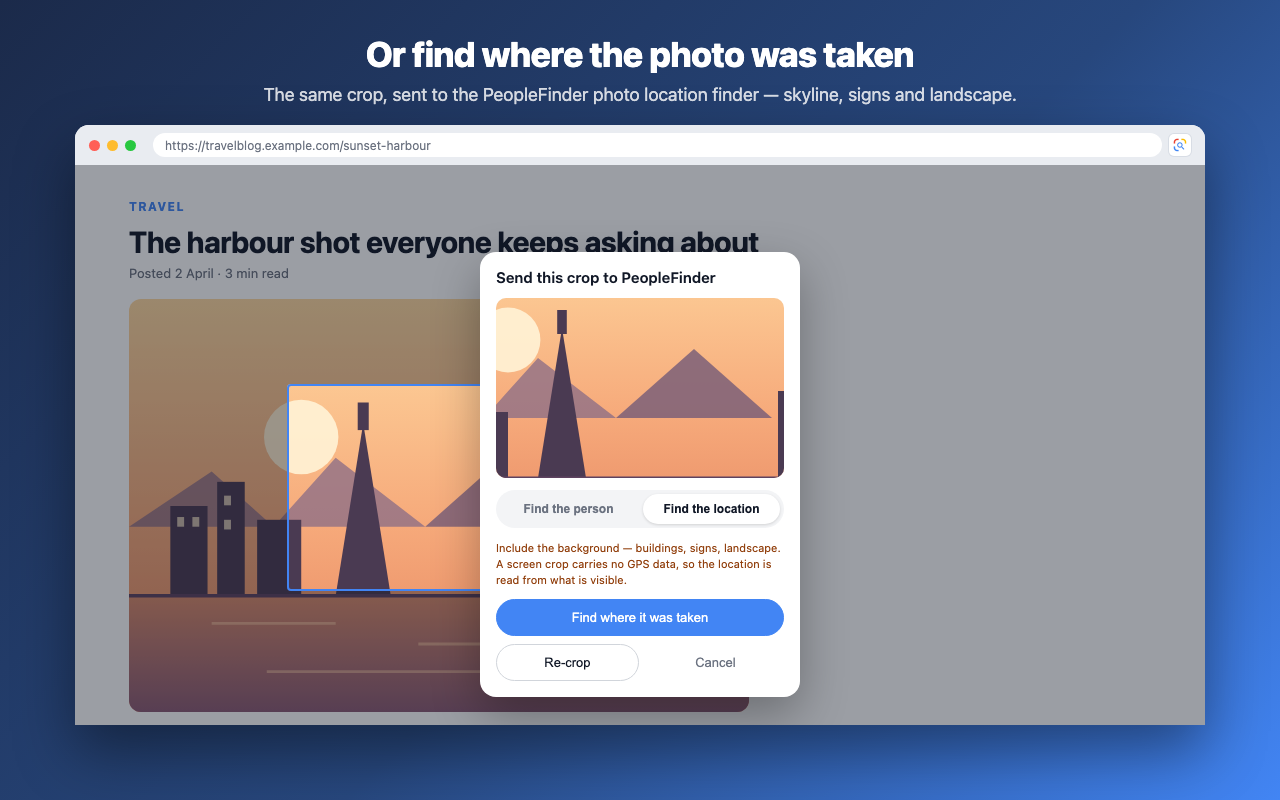
One thing worth knowing: a crop taken from your screen has no EXIF or GPS data in it — that information lives in the original file, not in what is drawn on the page. Location estimates from a crop therefore come from visual clues alone. If you have the original photo on your computer, upload it on the photo location finder instead and any GPS data it carries is used too.
Three ways to start a crop
- ✓Click the PeopleFinder icon in the toolbar.
- ✓Press Alt+Shift+S on any page.
- ✓Right-click an image and pick the PeopleFinder entry — the box is pre-fitted to that image, so you can just press Enter.
While a crop is open, Esc cancels it, Re-crop starts the box again, and Enter accepts a pre-fitted image.
What it cannot do
- •The crop covers what is on screen, so scroll the face or scene into view before you start.
- •Chrome internal pages (chrome://, the Web Store, the PDF viewer) cannot be scripted by any extension.
- •A screen crop has no EXIF or GPS data — location results come from visual clues only.
- •The extension never starts a search by itself. You review the crop and press the button.
What the extension can see
The extension asks for the narrowest permissions that let it work. It can capture the tab you are looking at only after you ask it to — by clicking the icon, using the context menu or pressing the shortcut. It keeps one cropped image in local storage for a few seconds while the PeopleFinder tab opens, then deletes it once the crop is attached. It loads a script on peoplefinder.app and nowhere else.
Searches themselves are covered by the PeopleFinder privacy policy, the same as using the website directly.
Questions people ask
What does the PeopleFinder Chrome extension do?
It lets you crop any image you can see in Chrome and send just that crop to PeopleFinder — either to a face search that finds a person by photo, or to the photo location finder that works out where the picture was taken. You never download the image or upload it by hand.
Is it free?
The extension itself is free. Running a search uses your PeopleFinder account in the normal way, the same as uploading a photo on the website.
Can I search for a person by photo without a name?
Yes. Leave the name field blank and PeopleFinder searches on the face alone. Adding a name narrows the results when you have one.
How do I find where a photo was taken?
Crop the part of the picture with the most visual context — skyline, signage, landscape — and choose “Find the location”. The crop opens in the PeopleFinder photo location finder, which estimates the place from those visual clues.
Does the extension read EXIF or GPS data?
No, and it cannot: a crop taken from the screen carries no EXIF at all. The location is estimated from what is visible in the image. If you have the original file on your computer, uploading it directly on the photo location finder page keeps any GPS data it contains.
What quality is the crop?
The crop is taken at screen resolution, so it is 2× on a Retina or HiDPI display. If an image is a small thumbnail on the page, open it at full size first (right-click → Open image in new tab) and crop it there for a sharper result.
Does it read the pages I visit?
No. Nothing runs on a page until you start a crop there, and the only site the extension loads a script on by itself is peoplefinder.app, where it attaches your crop to the upload field. There is no background tracking and no browsing history collection.
Which browsers does it work in?
Chrome, and the Chromium browsers that install from the Chrome Web Store — Edge, Brave, Arc, Opera and Vivaldi.
Why does nothing happen on some pages?
Chrome blocks every extension from running on its own internal pages — chrome://, the Chrome Web Store and the built-in PDF viewer. The toolbar icon flashes a red badge there. Any normal website works.