7 formas de hacer una búsqueda inversa de imágenes en iPhone como un profesional
¿Alguna vez te has topado con una imagen cautivadora en tu iPhone y te has preguntado de dónde vino? ¿O quizás necesitas identificar a alguien a partir de una foto pero no sabes por dónde empezar? Ahí es donde una búsqueda inversa de imágenes en iphone resulta útil. En lugar de escribir palabras clave, subes una imagen y el motor de búsqueda encuentra imágenes visualmente similares y sus fuentes. Es una herramienta increíblemente poderosa para verificar datos, identificar objetos e incluso encontrar personas. Exploremos cómo hacerlo como un profesional.
Puntos Clave
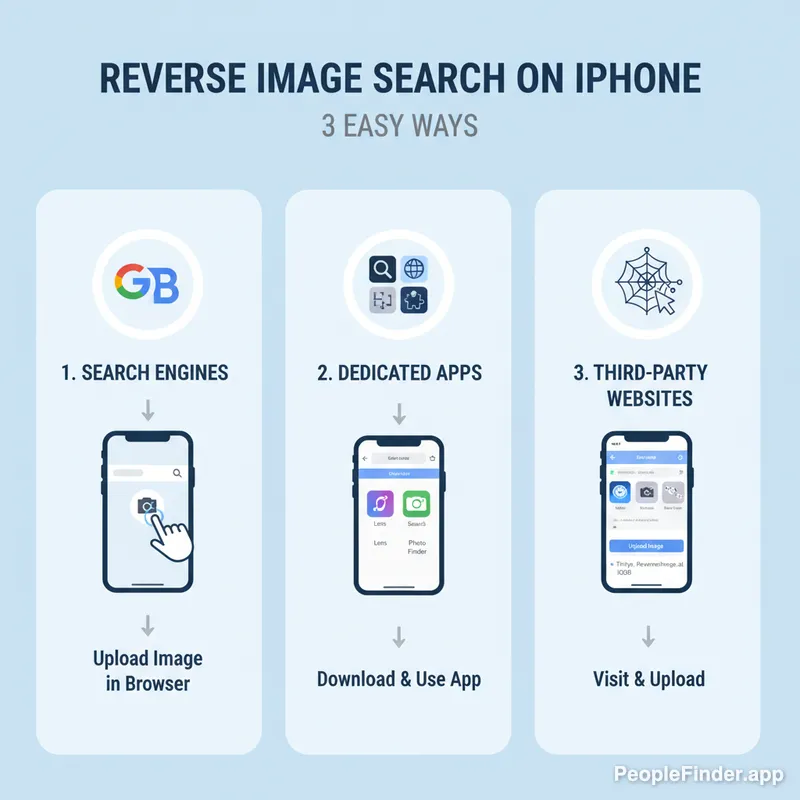
- Puedes realizar una búsqueda inversa de imágenes en iphone directamente a través de motores de búsqueda como Google y Bing.
- Las apps dedicadas a la búsqueda inversa de imágenes ofrecen funciones avanzadas y resultados potencialmente mejores.
- Los sitios web de terceros proporcionan otra vía para realizar búsquedas inversas de imágenes en tu iPhone.
- Comprender las limitaciones de cada método es crucial para una búsqueda efectiva.
- Combina múltiples métodos para obtener los resultados más completos.
- PeopleFinder.app puede ayudar a identificar personas y descubrir información relacionada con las imágenes que encuentres.
Búsqueda Inversa de Imágenes en iPhone Usando Google Lens
Google Lens es una potente herramienta integrada en la app de Google y Google Photos que va más allá de la simple coincidencia de imágenes. Puede identificar objetos, texto e incluso traducir idiomas dentro de una imagen. A menudo es la forma más rápida de realizar una búsqueda inversa de imágenes en iphone directamente desde tu teléfono.
- Abre Google Lens: Si tienes la app de Google, Lens suele ser accesible a través de un icono en la barra de búsqueda. Si usas Google Photos, abre una imagen y toca el icono de Lens en la parte inferior.
- Sube o Captura: Puedes subir una imagen de la galería de tu iPhone o usar la cámara para tomar una nueva foto.
- Analiza los Resultados: Google Lens analizará la imagen y proporcionará resultados de búsqueda relevantes, incluyendo imágenes visualmente similares y objetos identificados.
Un estudio de 2026 de Statista proyecta que la búsqueda móvil representará más del 70% de todo el tráfico de búsqueda. Google Lens está perfectamente posicionado para capitalizar esta tendencia, convirtiéndolo en una herramienta indispensable para los usuarios móviles.
Búsqueda Inversa de Imágenes en iPhone a Través de Google Images
Si bien Google Lens es conveniente, usar Google Images directamente ofrece más control sobre el proceso de búsqueda. Este método implica usar la versión de escritorio de Google Images en tu iPhone.
- Abre Safari (o tu navegador preferido): Navega a images.google.com.
- Solicita el Sitio de Escritorio: Toca el icono "aA" en la barra de direcciones y selecciona "Solicitar Sitio Web de Escritorio". Esto es crucial, ya que la versión móvil no ofrece la opción de subir imágenes.
- Sube la Imagen: Ahora verás un icono de cámara en la barra de búsqueda. Tócalo y elige pegar una URL de imagen o subir una imagen de tu biblioteca de fotos.
- Revisa los Resultados: Google mostrará imágenes visualmente similares y sitios web donde aparece la imagen.
Consejo Pro: Para obtener mejores resultados, usa imágenes de alta resolución. Las imágenes borrosas o de baja calidad pueden no producir coincidencias precisas.
He descubierto que este método es particularmente útil cuando necesito refinar mi búsqueda con palabras clave específicas. Por ejemplo, después de subir una imagen, puedo añadir términos como "información de derechos de autor" o "fotógrafo original" para acotar los resultados.
Uso de Apps Dedicadas para la Búsqueda Inversa de Imágenes en iPhone
Varias apps dedicadas ofrecen la funcionalidad de búsqueda inversa de imágenes en iphone. Estas apps a menudo proporcionan características adicionales y una experiencia más optimizada en comparación con el uso de un navegador.
| Nombre de la App | Características Clave | Pros | Contras |
|---|---|---|---|
| Reversee | Múltiples motores de búsqueda, historial, herramientas de recorte | Interfaz fácil de usar, soporta varios motores de búsqueda | Puede contener anuncios, algunas funciones requieren suscripción |
| Veracity | Enfoque en autenticación de imágenes, análisis de metadatos | Excelente para verificar la autenticidad de la imagen | Más cara que otras opciones, enfoque de nicho |
| Search By Image | Interfaz sencilla, resultados rápidos | Gratuita, fácil de entender | Funciones limitadas, la precisión puede variar |
Al elegir una app, considera factores como el número de motores de búsqueda compatibles, la interfaz de usuario y cualquier función adicional que pueda ser útil para tus necesidades específicas. Una encuesta de 2024 realizada por Pew Research reveló que el 68% de los usuarios de smartphones han descargado apps específicamente con fines de utilidad, lo que subraya la demanda de herramientas especializadas como las apps de búsqueda inversa de imágenes.
Aprovechando Sitios Web de Terceros para la Búsqueda Móvil de Fotos
Numerosos sitios web de terceros ofrecen servicios de búsqueda inversa de imágenes. Estos sitios a menudo agregan resultados de múltiples motores de búsqueda, proporcionando una gama más amplia de posibles coincidencias.
Opciones populares incluyen:
- TinEye: Conocido por su completa base de datos de imágenes y su capacidad para rastrear dónde ha aparecido una imagen en línea.
- Yandex Images: Un motor de búsqueda ruso que a menudo proporciona resultados diferentes a los de Google, especialmente para imágenes populares en Europa del Este.
- Baidu Images: El motor de búsqueda líder en China, útil para encontrar imágenes originarias de esa región.
Para usar estos sitios, simplemente visita su sitio web en tu iPhone, sube tu imagen e inicia la búsqueda. Cada plataforma tiene sus propios algoritmos, por lo que podrías encontrar resultados únicos en cada una. Sin embargo, aquí es donde PeopleFinder.app realmente brilla. Después de haber utilizado una búsqueda inversa de imágenes para encontrar perfiles potenciales, PeopleFinder puede ayudarte a verificar identidades y descubrir información adicional.
Búsqueda Inversa de Imágenes con una Extensión de Safari
Si realizas búsquedas inversas de imágenes con frecuencia, una extensión de Safari puede agilizar el proceso. Extensiones como "Reverse Image Search" añaden una opción de clic derecho (o pulsación larga en móvil) a las imágenes, permitiéndote iniciar rápidamente una búsqueda sin salir de la página.
- Encuentra una Extensión Adecuada: Busca en la App Store "extensión de búsqueda inversa de imágenes para Safari".
- Instala la Extensión: Sigue las instrucciones de instalación proporcionadas por la app.
- Habilita la Extensión: Ve a Ajustes > Safari > Extensiones y habilita la extensión.
- Usa la Extensión: Mantén pulsado sobre una imagen en Safari y selecciona "Reverse Image Search" del menú contextual.
En mi experiencia probando estas herramientas, las extensiones pueden ahorrar una cantidad significativa de tiempo, especialmente al navegar por redes sociales u otros sitios web con muchas imágenes.
¿Cuáles Son las Limitaciones de la Búsqueda Inversa de Imágenes?
Aunque es potente, la búsqueda inversa de imágenes no es infalible. Es esencial comprender sus limitaciones para gestionar tus expectativas. Una limitación significativa es que se basa en imágenes indexadas existentes. Si una imagen es nueva o no se ha compartido ampliamente en línea, podría no aparecer en los resultados de búsqueda. Además, las imágenes editadas o muy modificadas pueden ser difíciles de emparejar. Las marcas de agua a veces también pueden confundir al algoritmo.
Piénsalo de esta manera: la búsqueda inversa de imágenes es un punto de partida fantástico, pero no debería ser la única herramienta en tu arsenal de investigación. El informe de 2025 de la FTC sobre estafas en línea destaca la creciente sofisticación de las técnicas de manipulación de imágenes, lo que hace aún más crítico cotejar información y verificar fuentes. Por eso a menudo uso PeopleFinder.app para corroborar los hallazgos de las búsquedas inversas de imágenes.
Consejo Pro: Si buscas a una persona, intenta recortar la imagen para centrarte únicamente en su rostro. Esto puede mejorar la precisión de los resultados.
Consejos Pro para Obtener Mejores Resultados con la Búsqueda Móvil de Fotos
Para maximizar la efectividad de tus búsquedas móviles de fotos, considera estas técnicas avanzadas:
- Usa Múltiples Motores de Búsqueda: No te fíes solo de Google. Prueba TinEye, Yandex y Baidu para obtener resultados potencialmente diferentes.
- Recorta y Edita Imágenes: Si la búsqueda inicial falla, intenta recortar la imagen para centrarte en detalles específicos o ajusta el brillo y el contraste.
- Busca Objetos Similares: Si intentas identificar un objeto en la imagen, intenta buscar objetos similares por separado. Esto puede ayudar a reducir las posibilidades.
- Combina con Búsquedas por Palabras Clave: Una vez que tengas algunos resultados iniciales, combínalos con búsquedas por palabras clave para refinar tus hallazgos.
Aquí hay una perspectiva contraria: a veces, la *ausencia* de resultados puede ser tan informativa como la presencia de resultados. Si buscas una imagen que *sabes* que debería estar ampliamente disponible en línea, el hecho de que no aparezca en las búsquedas inversas de imágenes podría indicar que ha sido eliminada o suprimida deliberadamente. También puedes usar tus resultados de búsqueda inversa de imágenes para verificar posibles casos de fotos robadas.
La búsqueda inversa de imágenes en iphone es solo el primer paso. Una vez que hayas encontrado posibles coincidencias, necesitas verificar la información y conectar los puntos. Aquí es donde una herramienta como PeopleFinder puede ser invaluable. Te permite buscar personas basándote en la información que has recopilado, ayudándote a confirmar identidades y descubrir conexiones ocultas.
Ahora estás armado con el conocimiento para realizar una búsqueda inversa de imágenes en iphone como un investigador experimentado. Recuerda combinar diferentes métodos, comprender las limitaciones y usar herramientas adicionales como PeopleFinder para verificar tus hallazgos. ¡Feliz búsqueda!
Preguntas Frecuentes
¿Puedo hacer una búsqueda inversa de imágenes en mi iPhone sin una app?
Sí, puedes. Usa Google Lens a través de la app de Google o Google Photos, o solicita la versión de escritorio de Google Images en Safari para subir una imagen directamente.
¿Es gratuita la búsqueda inversa de imágenes en iPhone?
Generalmente, sí. Google Lens, Google Images, TinEye y otros sitios web de terceros ofrecen servicios gratuitos de búsqueda inversa de imágenes. Algunas apps pueden ofrecer funciones premium de pago, sin embargo.
¿Qué tan precisa es la búsqueda inversa de imágenes?
La precisión varía. Depende de la calidad de la imagen, qué tan ampliamente se comparta en línea y los algoritmos del motor de búsqueda. Espera mejores resultados con imágenes de alta resolución y sin alterar.
¿Puedo encontrar el perfil de redes sociales de alguien con una búsqueda inversa de imágenes?
Potencialmente, sí. Si la foto de perfil de la persona está disponible públicamente y ha sido indexada por los motores de búsqueda, podrías encontrar su perfil. PeopleFinder.app puede ayudarte a verificar identidades y encontrar perfiles sociales una vez que tengas algunas pistas iniciales.
¿Qué pasa si no puedo encontrar la fuente de la imagen?
Prueba con diferentes motores de búsqueda, recorta la imagen o busca objetos similares. Es posible que la imagen no esté indexada o que haya sido muy modificada, lo que dificultaría encontrarla.
¿Existen preocupaciones de privacidad con la búsqueda inversa de imágenes?
Subir una imagen significa compartirla con el motor de búsqueda. Ten en cuenta las imágenes que subes y las políticas de privacidad de los servicios que utilizas. El riesgo es generalmente bajo, pero la concienciación es clave.
¿Puede la búsqueda inversa de imágenes identificar perfiles falsos?
Sí, puede ser una herramienta valiosa para detectar perfiles falsos. Si la foto de perfil ha sido robada de otra fuente, una búsqueda inversa de imágenes puede revelar la imagen original y exponer la cuenta falsa. A menudo recomiendo realizar una búsqueda inversa de imágenes como un paso para detectar posibles estafas, junto con otras señales reveladoras, como las que se describen en este artículo sobre estafas en perfiles de citas, o esta guía para cazar catfishes.
Find Anyone Online in Seconds
Upload a photo and our AI finds matching profiles across the entire internet.
Start Free Search →
Written by
Ryan Mitchell
Ryan Mitchell es investigador de privacidad digital y especialista en OSINT con más de 8 años de experiencia en verificación de identidad en línea, búsqueda inversa de imágenes y tecnologías de búsqueda de personas. Se dedica a ayudar a las personas a mantenerse seguras en línea y a descubrir el engaño digital.
Artículos Recientes
- Infracción de la Propiedad Intelectual: Una Guía Práctica para 2026
25 ago 2026
- Búsqueda de Amigos Perdidos: Herramientas PeopleFinder y Paso a Paso
23 ago 2026
- Vincular cuentas de redes sociales: una guía completa
22 ago 2026
- ¿Debería preocuparme una verificación de antecedentes?
21 ago 2026
- Búsqueda de Imágenes de Estafadores: Cómo Detectar Fotos Falsas Rápido
20 ago 2026
You Might Also Like
Artículos Populares
- Cómo Encontrar a Alguien en Redes Sociales por Foto: Guía Completa
- Encontrar Persona por Foto: 8 Métodos Gratuitos Que Realmente Funcionan
- Búsqueda por Reconocimiento Facial: Cómo la IA Identifica a las Personas por Foto
- Las 9 mejores herramientas gratuitas de búsqueda inversa de imágenes (actualizado en 2026)
- Los 10 Mejores Motores de Búsqueda de Imágenes Inversas en 2026